
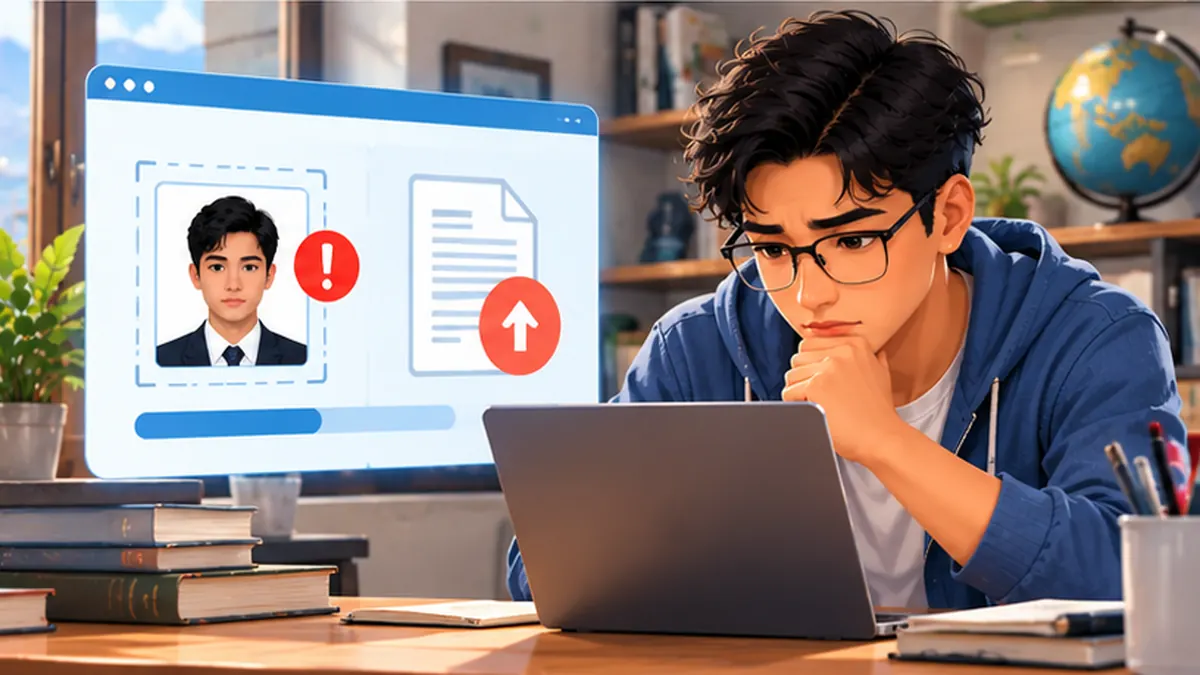
Step-by-step instructions
Read the portal’s exact error and specifications
Before editing, write down the permitted formats, maximum kilobytes or megabytes, required pixel dimensions, aspect ratio and background rules. Do not assume one photo will suit a Lok Sewa application and a passport application. If an error shows a code, take a private screenshot with the applicant details hidden.
Check the actual format, not only the filename
An iPhone photo might be HEIC even if you rename it with .jpg. Use a trusted offline Photos or image-editor export to create a genuine JPEG or PNG, according to the portal. Simply renaming the extension does not convert its contents and can trigger “invalid file” messages.
Crop with the right aspect ratio first
If the portal requires a square, portrait or fixed pixel size, crop to the specified shape before reducing the file. Do not stretch a face to fit; it can distort the image. For official identity photos, preserve the required framing, plain background and clarity rather than applying heavy filters or AI face changes.
Reduce file size without losing readability
Use a reputable offline image editor to export at the specified quality. Keep the original untouched. If there is a KB limit, compress a copy and inspect the result at full size. A file that is small enough but too blurry can still be rejected during manual review.
Use a simple filename and confirm the correct document
Rename the copy with letters, digits, hyphens or underscores such as applicant-photo.jpg when permitted. Avoid emoji and unusual punctuation. Ensure the photo and supporting identity file are not mixed up. Never upload another person’s citizenship scan or a household member’s picture by mistake.
Try the supported browser and a stable connection
A form can time out while you are collecting documents. Save any allowed draft and sign in again through the official site. Try an updated mainstream browser or a desktop device; clear only the affected site’s browser cache if the instructions suggest it. Do not submit duplicate applications blindly.
Inspect the preview after upload
Some sites show a preview before final submission. Check cropping, orientation, face visibility and Nepali text in attached PDFs. A successful file-picker selection is not proof the server accepted the file. Wait for the site’s upload confirmation and record any application reference.
Escalate with evidence, not personal documents in public
If the portal continues to fail, contact its official helpdesk with the error, browser, file format, approximate file size and time. Do not post citizenship numbers, applicant photographs or login information in public groups. Keep a separate offline copy of your documents in a secure folder.
Mistakes to avoid
- Renaming a HEIC file to .jpg without converting its content.
- Uploading sensitive documents to random “free compression” sites.
- Submitting an application without checking the file preview.
Frequently asked questions
Is 600×600 required for every Nepal form?
No. Requirements differ between portals. Follow the specification displayed by the particular service.
Why does a JPEG still fail?
Possible causes include size, corrupted encoding, dimensions, session expiry or portal errors.
Should I use AI to improve an identity photo?
Avoid edits that alter facial appearance or violate the receiving agency’s photo rules.
Official sources and further reading
Operator rules, application screens and government procedures can change. Check the latest official instructions before sharing personal details or paying a fee.
 How to Secure Your Google Account in NepalA beginner-friendly Google account safety checklist: passwords, 2-step verification, device checks and recovery.
 How to Spot Fake Links, OTP Scams and Phishing MessagesSimple checks for suspicious SMS, wallet messages, job offers and fake login pages before sharing passwords or OTPs.
 Wi-Fi Connected but No Internet? Fix It on WindowsStep-by-step Windows Wi-Fi troubleshooting for home internet in Nepal, without risky settings changes.